
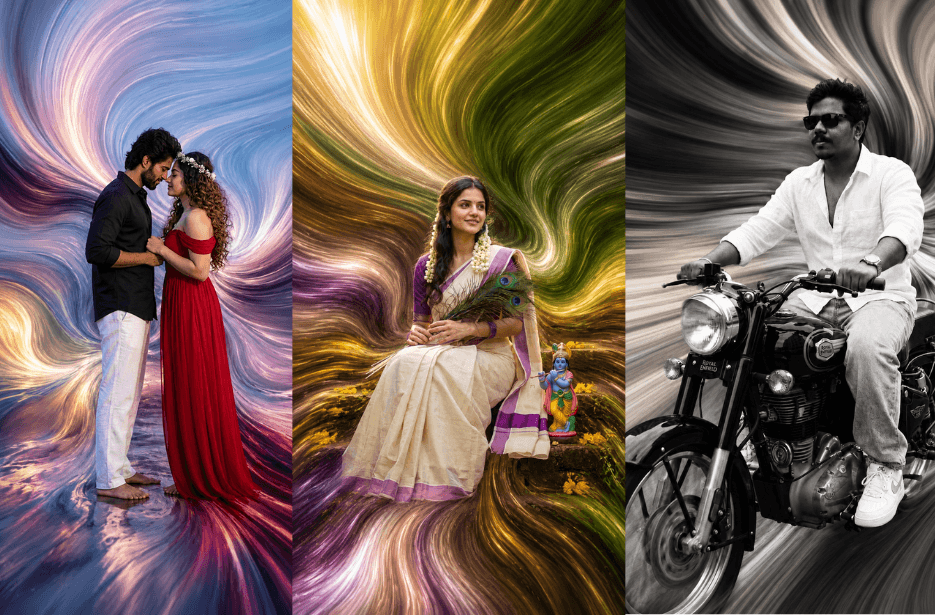
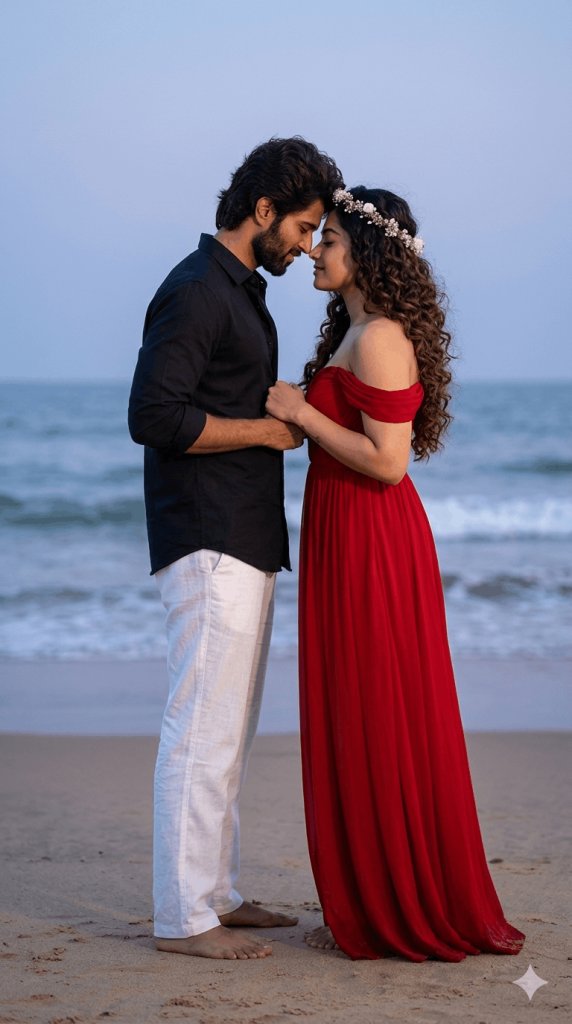
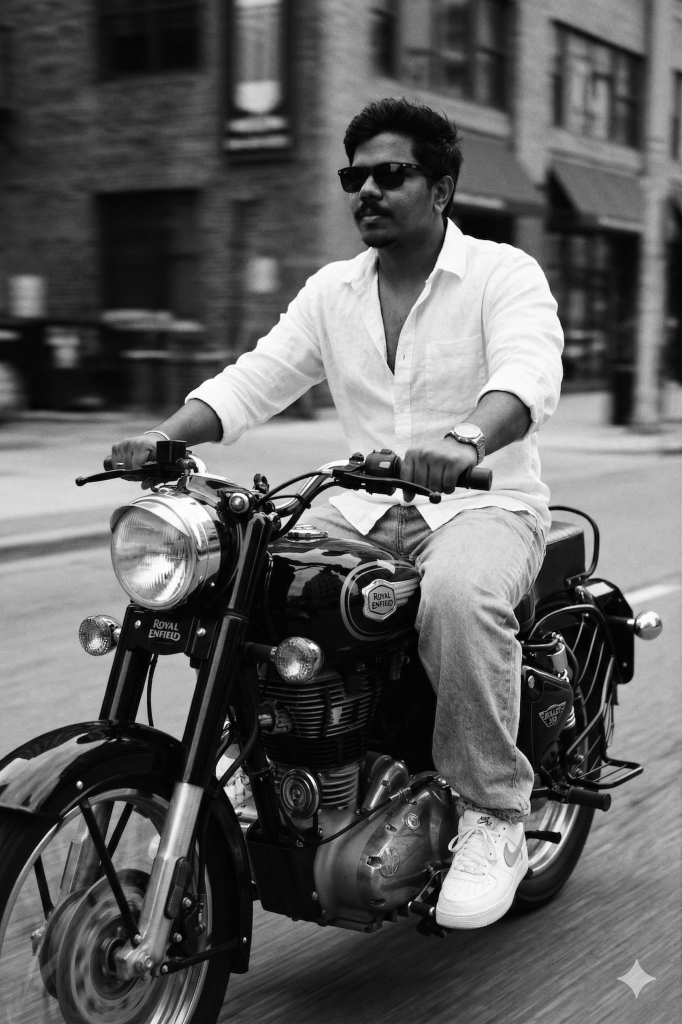
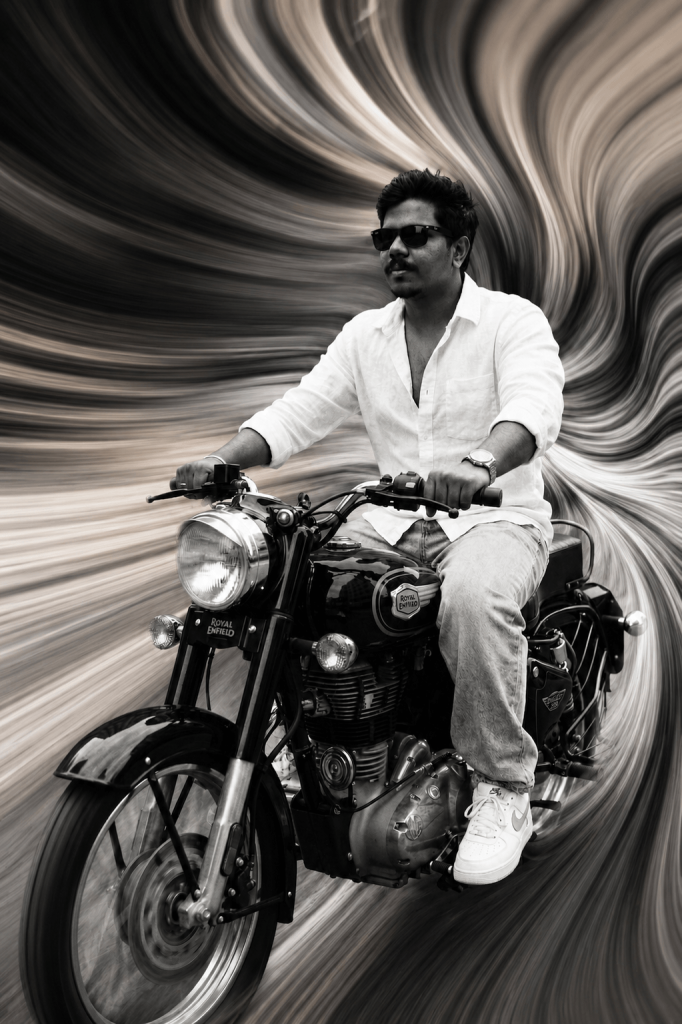
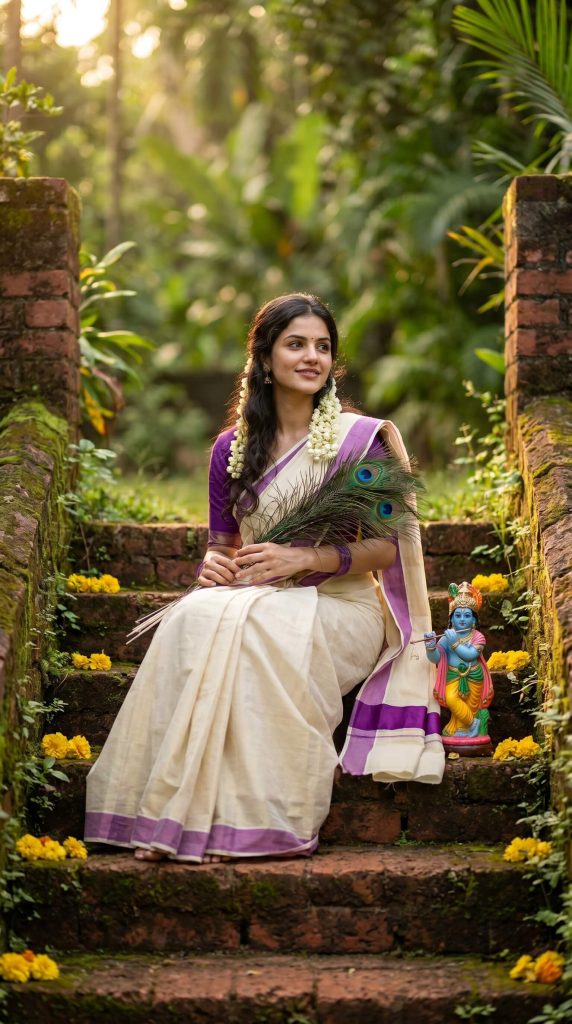
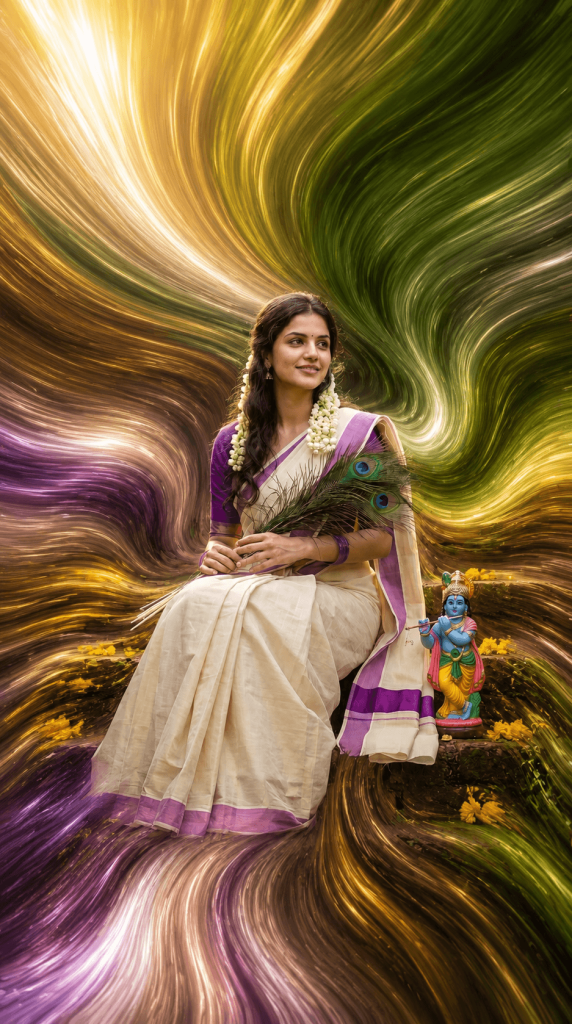
Want to turn an ordinary photo into a breathtaking pixel-stretch masterpiece? This AI prompt transforms the background into elegant flowing ribbons of colour, light, and motion while keeping the subject perfectly sharp and untouched. Ideal for creating premium social media portraits, cinematic edits, and gallery-quality digital artwork with a luxurious Photoshop-inspired pixel stretch effect.
Prompt
Transform only the background and surrounding environment into a premium pixel-stretch artwork inspired by Adobe Photoshop’s pixel-sorting and stretch techniques. Extract colors, textures, light, and details from the scene and extend them into smooth, flowing ribbons that curve organically around the subject. Create elegant streams of stretched pixels resembling liquid paint, silk fabric, flowing energy, smoke trails, and motion-blurred light waves.
The pixel stretches should radiate naturally from the environment, wrapping through the composition with dynamic movement while maintaining seamless transitions and realistic depth. No glitches, broken pixels, jagged edges, artifacts, or distortion on the subject. The effect should feel fluid, luxurious, and artistic, as if the world around the subject is melting into graceful waves of color and motion.
Maintain realistic lighting, shadows, reflections, and perspective. The subject remains the only perfectly focused element while the surroundings transform into swirling, high-end abstract motion art. Ultra-realistic, cinematic photography, gallery-quality digital artwork, premium Instagram aesthetic, Adobe Photoshop pixel stretch effect, flowing motion trails, abstract energy waves, ultra-detailed 8K resolution, masterpiece quality.
Version 1: Classic Pixel Stretch Effect
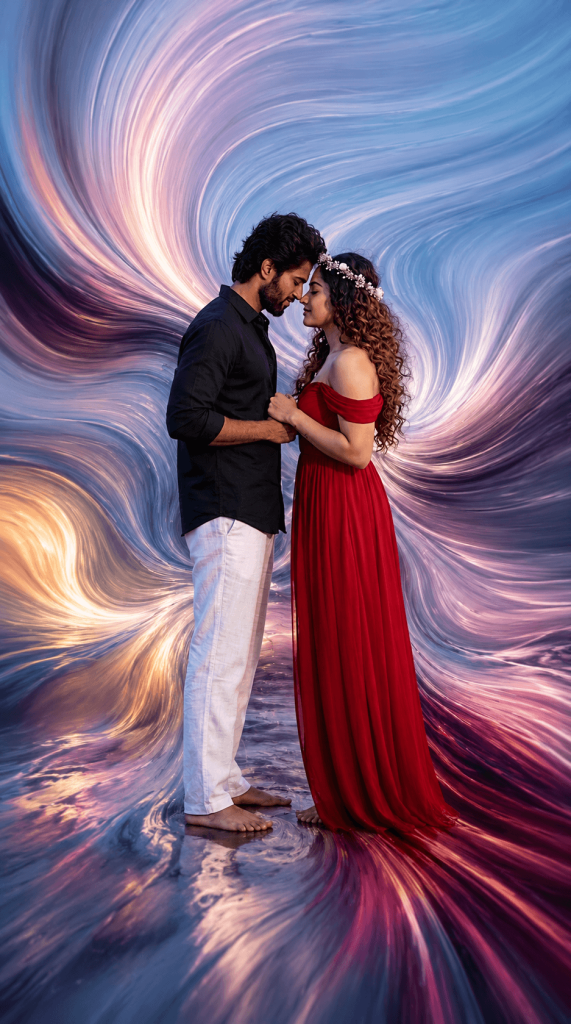
Version 2: Liquid Motion Pixel Art
Version 3: Cinematic Energy Wave Effect
How to Use These Prompts
1. Below each image, you will see a prompt box with two buttons: Copy and Share to AI.
2. You can tap Copy to copy the full prompt manually. Or simply tap Share to AI; this will automatically copy the prompt for you.
3. After tapping Share to AI, a list of popular AI tools like ChatGPT, Gemini, Copilot, and others will appear on your screen.
4. Click on any AI tool you prefer. It will directly open the selected AI platform.
5. Once the AI page opens, paste the prompt into the prompt box (it is already copied if you used Share to AI).
6. Upload your reference image if required.
7. Click generate, and your image will be created.
8. If needed, you can slightly adjust the prompt for lighting, angle, or mood and generate again.
9. Once you are satisfied with the result, download the image and save it for your use.