
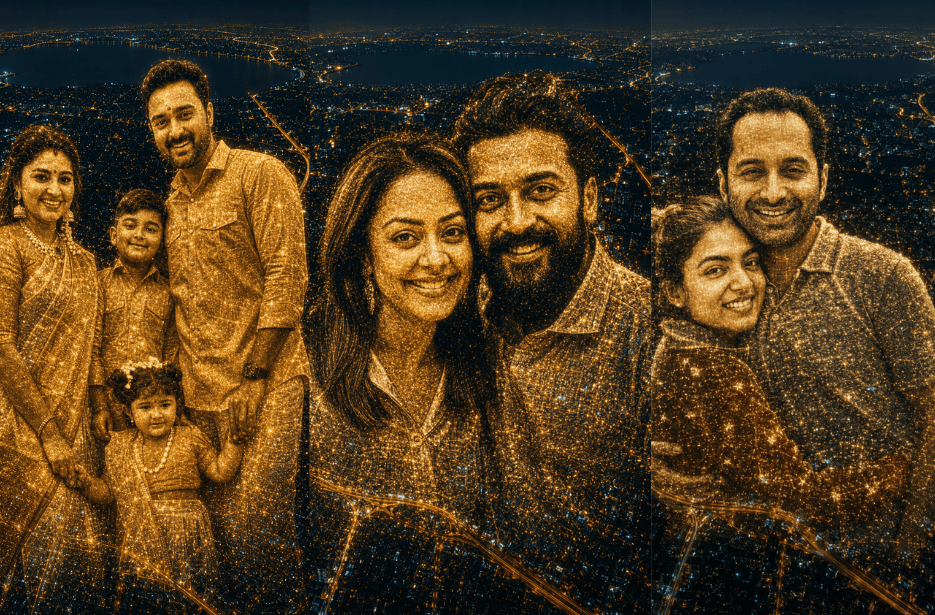
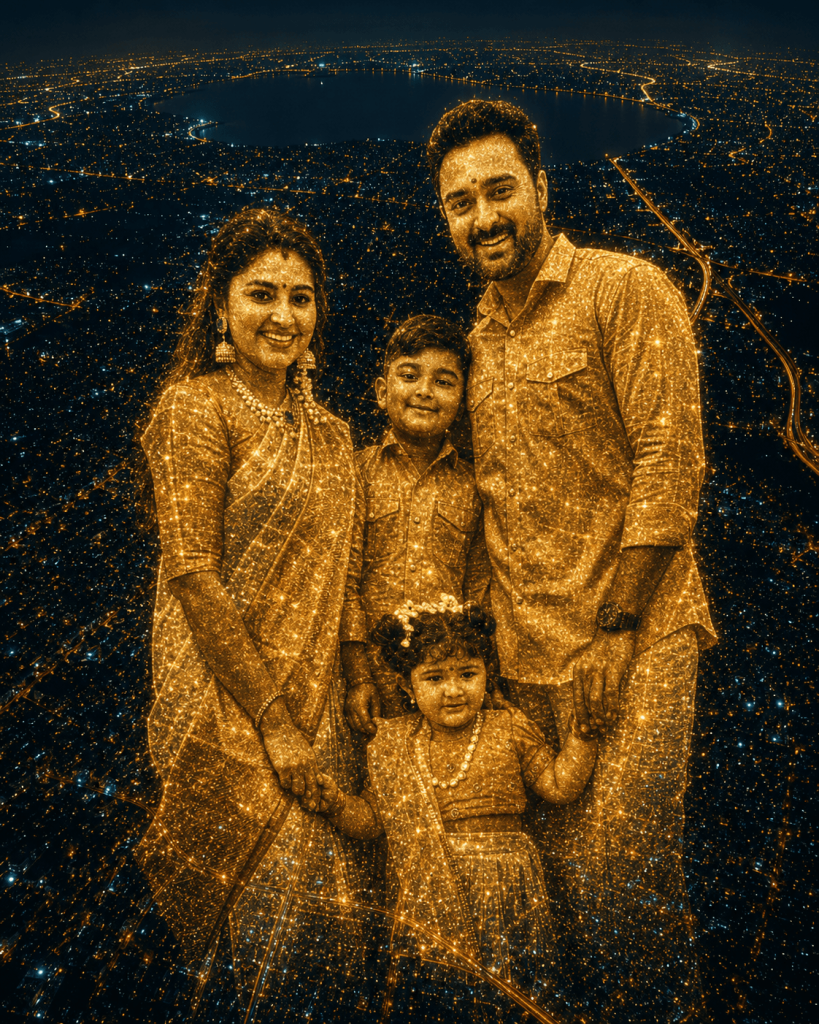
Transform your photos into breathtaking aerial cityscape portraits where your face emerges from a sea of glowing city lights. These cinematic AI prompts combine drone-view urban landscapes, illuminated streets, traffic trails, and dramatic night skylines to create stunning double-exposure artworks. Perfect for social media, creative photography projects, and eye-catching digital portraits, these prompts produce ultra-realistic city-light mosaics with a premium cinematic aesthetic.
Prompt
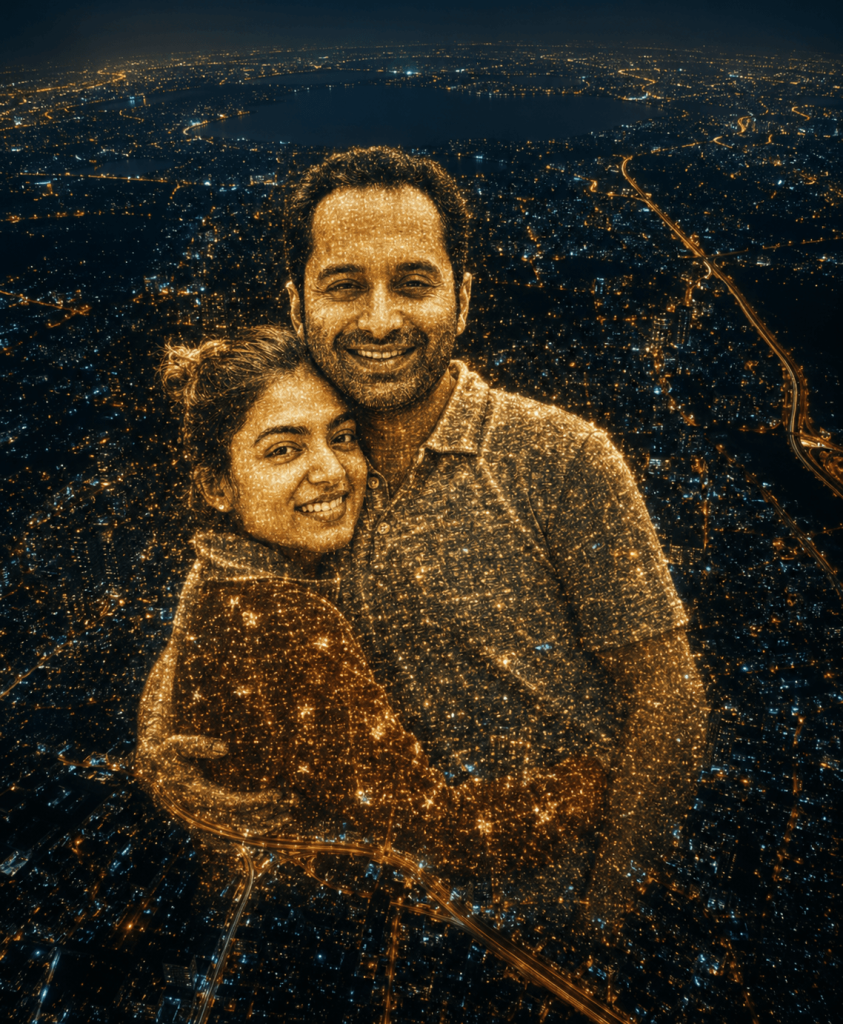
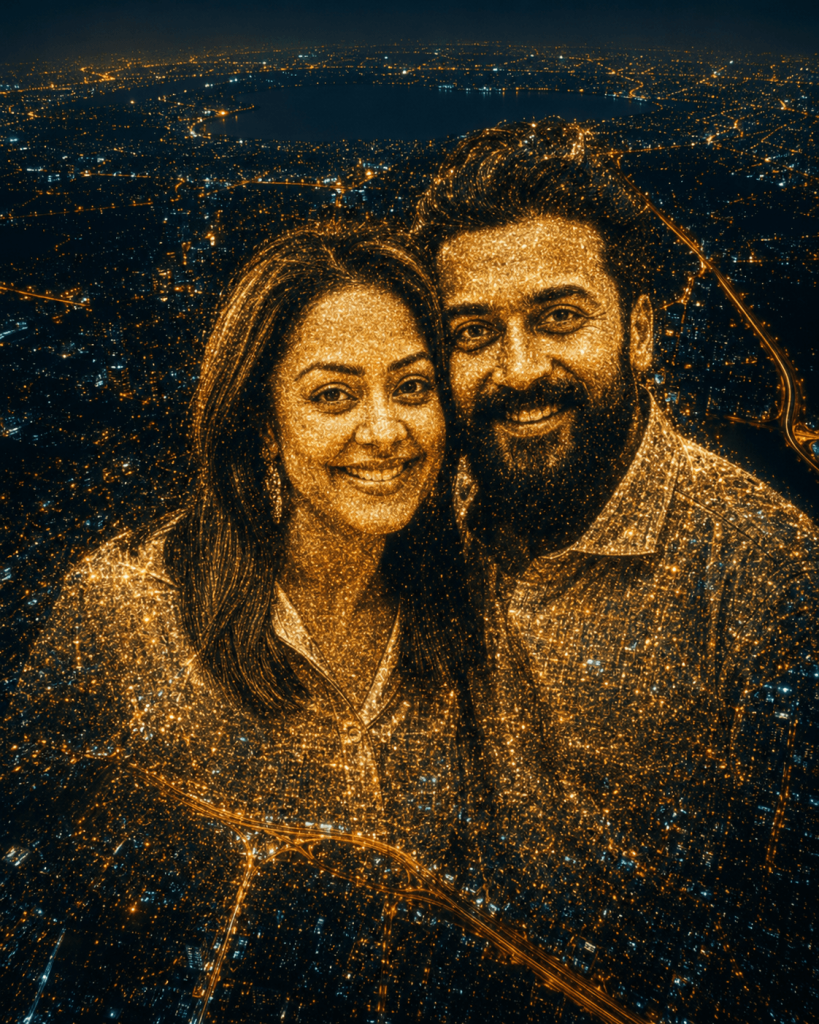
The entire portrait should be formed using thousands of warm golden city lights, streets, and traffic patterns, creating a double-exposure effect where the face and upper body emerge naturally from the illuminated urban grid. Add a large lake or dark water body in the background for depth.
Use a rich golden-orange and deep blue color contrast, with soft haze and atmospheric glow. Ensure realistic light mapping so the city lights define facial contours, hair texture, and clothing folds.
Style: ultra-realistic, cinematic, long exposure city lights, HDR, high detail, 8K quality, dreamy yet sharp, smooth blending, no distortion of facial features.
Version 1: Golden City Lights Portrait from the Sky
Version 2: Aerial Metropolis Double-Exposure Night Portrait
Version 3: Drone View Urban Glow Face Illusion
How to Use These Prompts
1. Below each image, you will see a prompt box with two buttons: Copy and Share to AI.
2. You can tap Copy to copy the full prompt manually. Or simply tap Share to AI; this will automatically copy the prompt for you.
3. After tapping Share to AI, a list of popular AI tools like ChatGPT, Gemini, Copilot, and others will appear on your screen.
4. Click on any AI tool you prefer. It will directly open the selected AI platform.
5. Once the AI page opens, paste the prompt into the prompt box (it is already copied if you used Share to AI).
6. Upload your reference image if required.
7. Click generate, and your image will be created.
8. If needed, you can slightly adjust the prompt for lighting, angle, or mood and generate again.
9. Once you are satisfied with the result, download the image and save it for your use.
Customization Tips
- Replace golden city lights with neon blue, cyberpunk, or multicolour lighting.
- Add famous landmarks or skyscrapers for a recognisable city backdrop.
- Switch from upper body portrait to full-body silhouette for a grander effect.
- Include rivers, oceans, or lakes to enhance depth and reflections.
- Add fog, rain, or light trails for a more cinematic atmosphere.
- Use sunrise or twilight city lighting for a softer mood.
- Increase drone altitude for a wider panoramic city view.
- Add fireworks or glowing constellations for a fantasy-inspired look.