
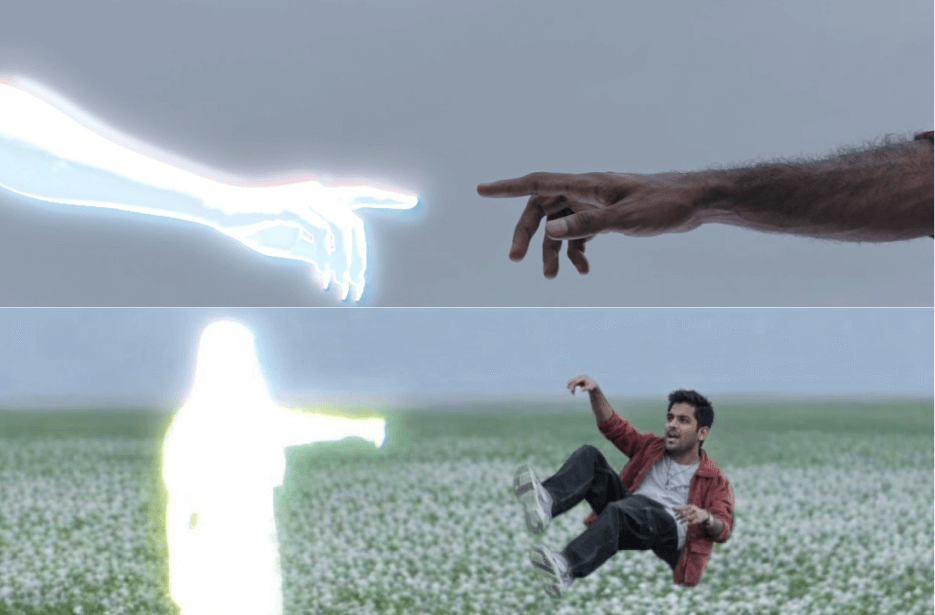
The famous Enakenna Yaarum Illaye Song [Aakko Song], originally released during Valentine’s season in 2015, is back in the spotlight. It now has a brand new official music video starring Pradeep Ranganathan for the movie Love Insurance Kompany (LIK). One particular floating scene from the video quickly grabbed attention online. Soon, many creators started recreating the same moment using AI tools, and the trend began to go viral across social media.
Inspired by this trend, we also created our own version of the floating scene using AI. First, we generated the base images with ChatGPT. Then, we converted those images into smooth motion videos using Google Flow and Kling AI. The result was surprisingly realistic and visually appealing. Here, we will share the exact prompt and steps we used so you can easily recreate the same viral floating effect on your own.
Step 1: Image Generation
The process begins with capturing the right reference from the original music video. Take a clear screenshot of the floating scene you want to recreate from the original. You can also take the images below in the website. These images will act as the primary visual reference for your AI generation.
Open ChatGPT and upload the original screenshot along with your personal photo. Use the prompt provided and generate the first base image. The aim is to recreate the same scene while naturally replacing the face with yours.
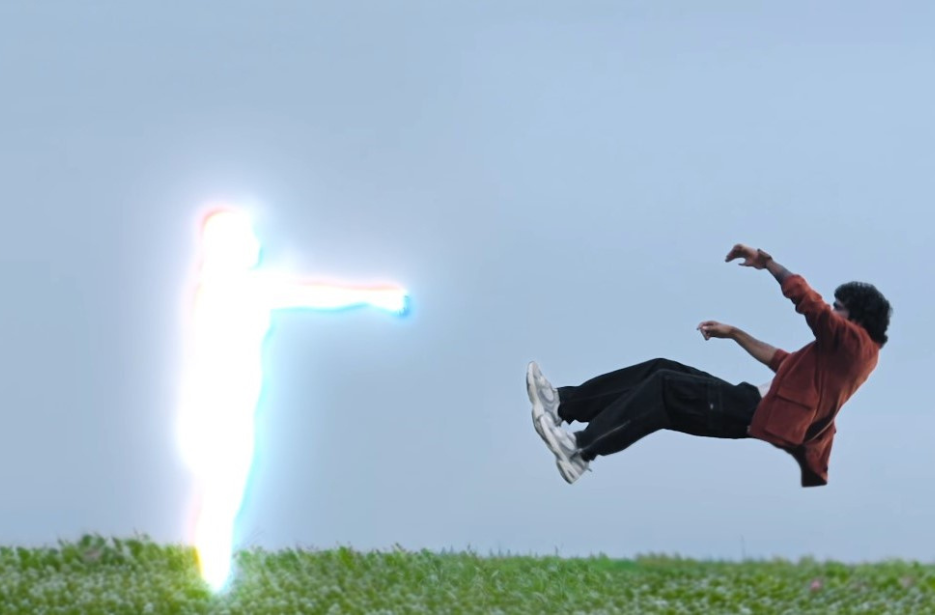
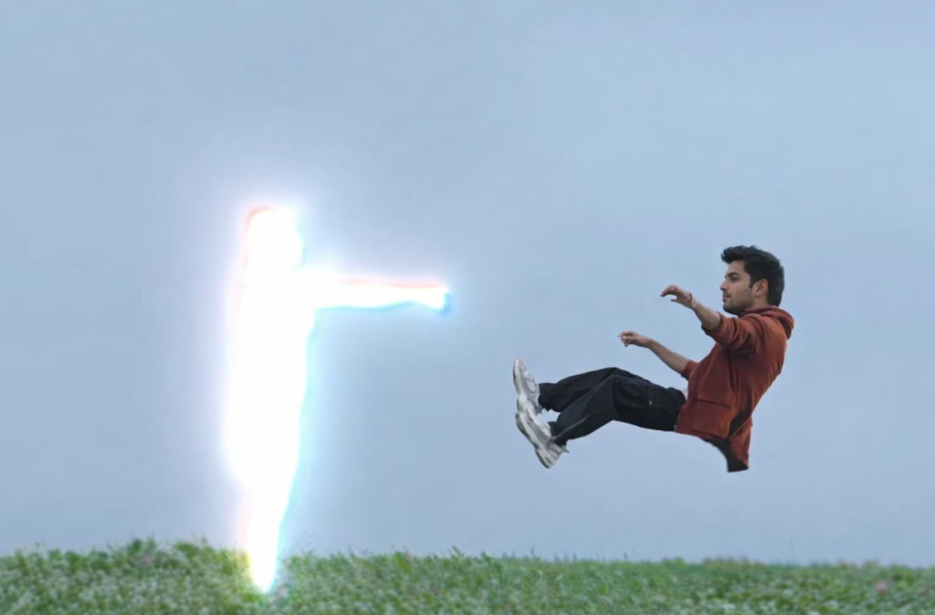
Repeat the same process for the second reference frame. Upload the second reference image together with your photo and run the second prompt.
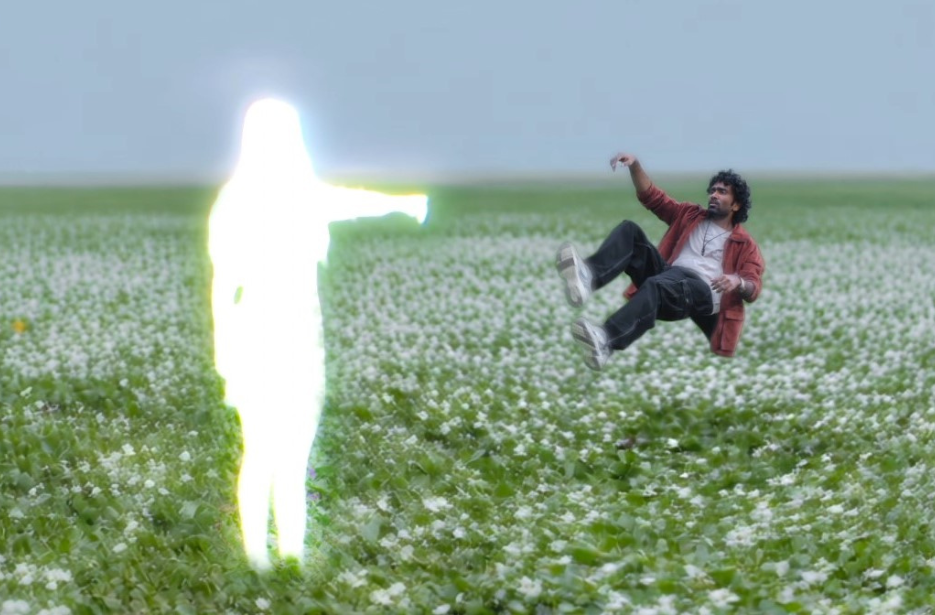
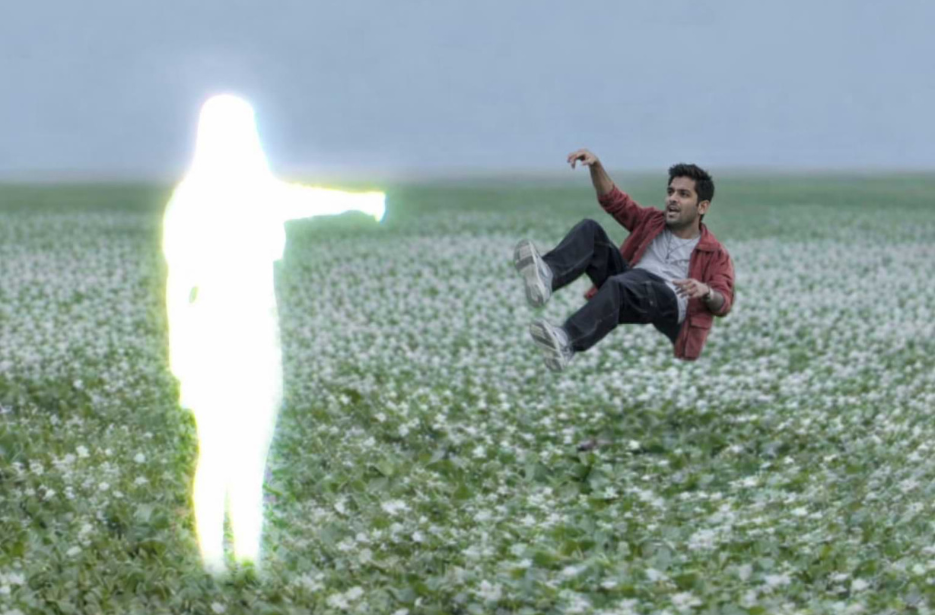
Once the images are ready and look satisfactory, you can move on to the video generation stage.
Step 2: Video Generation
Now it is time to turn the images into videos. First, go to Google Flow and upload the first reference image. Paste the provided prompt in the prompt box to convert the image into a video.
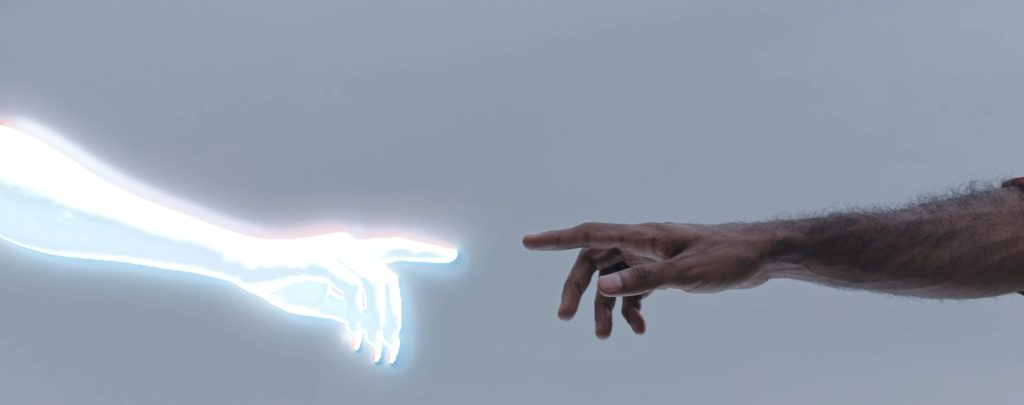
Next, go to Kling AI and upload the second image. Paste the given prompt below and generate the video.
Finally, upload the third image in Kling AI. Again, paste the prompt below and create the final video clip.
Once all video clips are generated, proceed to the final step.
Step 3: Merge Videos and Add Music
In the final step, open any video editor you prefer. It can be a mobile app or desktop software. First, import all the generated video clips into the editor timeline. Arrange the clips in the correct order so the flow looks natural. Watch once and trim the unwanted portions from each clip to keep only the required moments.
Next, add your preferred song in the background. Make sure the music syncs well with the floating scene for a better impact. You can also make small improvements like adjusting brightness, adding slow motion, or applying smooth transitions between clips. These simple touches make the video look more professional. Finally, export the video in good quality. Your viral floating scene edit is now ready to share on social media.